 Search Tips
Crypto Getting Started Guide
Learn how to enable and configure cryptocurrency as a payment option on your Segpay payment pages.
Overview
Segpay supports cryptocurrency as a payment option on your Segpay payment pages. Offering crypto helps you reach consumers who prefer not to use bank cards or cannot access them, and crypto transactions are not subject to fraud or chargebacks. When a consumer pays with crypto, the cryptocurrency is immediately converted to your base price point currency. You do not need a crypto wallet to accept crypto payments.
Payment method properties
| Property | Details |
|---|---|
| Payment Method Family | Digital currency payments |
| Currencies Supported | BCH, BTC, DASH, ETH, LTC, POL, SOL, TRX, USDC, USDT |
| Consumer Locations | Worldwide |
| Merchant-Supported Countries | Available to merchants in Segpay-supported regions |
| Supported Billing Models | One-Time, Digital Purchase, Dynamic Pricing |
Before you begin
Two things must be in place before crypto appears as a payment option on your pay page:
-
Your merchant account must be enabled for crypto. Contact your Account Manager to request this.
-
Your packages must be enabled for crypto. This shows crypto as a payment option on your payment page.
Limitations
Crypto does not support the following:
-
No recurring payments. Crypto is not available for recurring payment sign-ups. Consumers signing up for a recurring plan will not see crypto as a payment option and will need to use another available payment method.
-
No cross-sells. Cross-sell options are not displayed when a consumer selects crypto, or when your pay page defaults to crypto.
-
No refunds. All crypto transactions are final.
Accept crypto payments
After Segpay enables your merchant account for crypto, you can configure your existing payment packages to accept crypto payments.
Enable crypto on a package
To display crypto as a payment option on your pay page, enable it on the relevant package.
-
Log in to the Merchant Portal at https://mp.segpay.com/
-
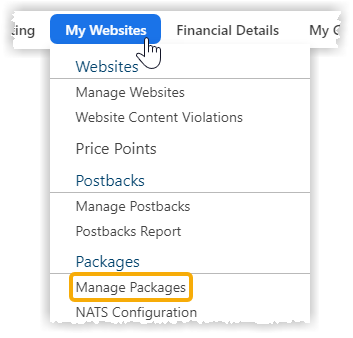
Go to My Websites > Manage Packages.
-
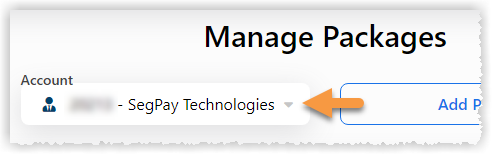
Select your merchant account from the drop-down menu.
-
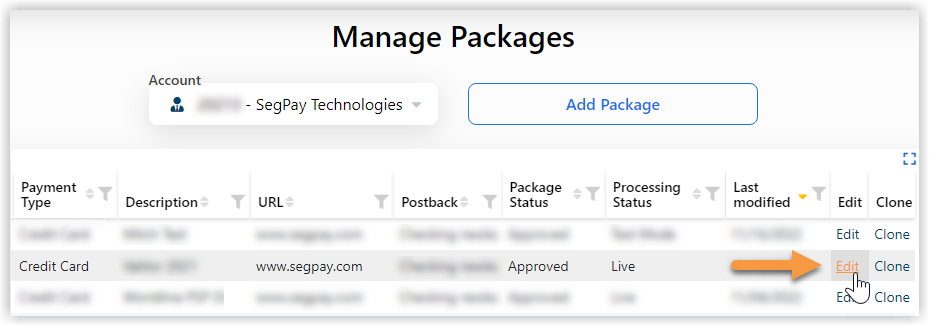
Find the package you want to enable for crypto and click Edit.
-
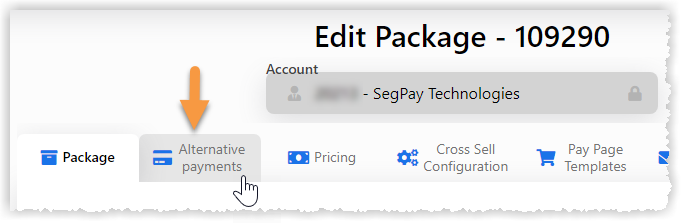
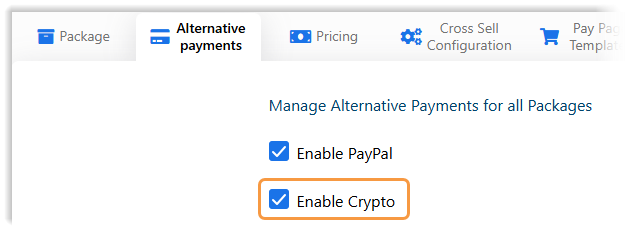
Click the Alternative Payments tab.
-
Select the Enable Crypto checkbox.
-
Click Save.
Crypto will not appear as a payment option on your pay page unless the Crypto Enabled checkbox is selected.
Accept underpayments (optional)
This setting is optional. Crypto exchange rates fluctuate between the time a consumer initiates a payment and the time it is received, which can result in the amount received falling slightly below the listed price. Setting a minimum acceptable percentage prevents those transactions from being rejected automatically.
-
Log in to the Merchant Portal: https://mp.segpay.com/
-
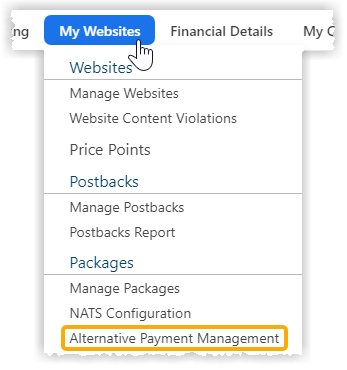
Go to My Websites > Alternative Payment Management
-
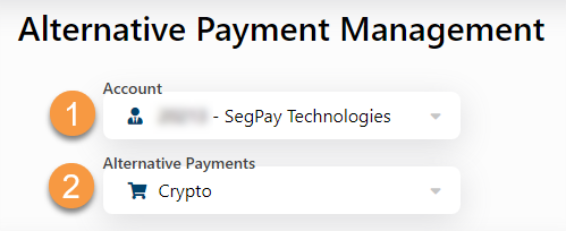
Select your merchant Account from the drop-down menu, then select Crypto from the Alternative Payments drop-down menu.
-
Set the Accept Under Payments toggle to Yes and select a minimum percentage.
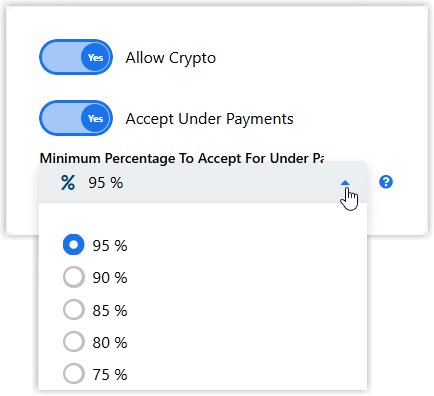
Price Point for the sale = $50.00
Minimum amount to accept for Under Payment = 95%
The lowest acceptable amount for a crypto payment = $47.50 (95% of $50).
Payments below this amount are not processed. -
Click Save.
Configure join links (optional)
A join link is the URL of your Segpay payment page for a specific package and price point. By default, your existing join links work for all enabled payment types and you don't need to make any changes. If you want to control which payment options appear on your pay page, or set a default payment type when the page loads, you can use the allowedpaymenttypes parameter.
To retrieve your join link:
-
Go to My Websites > Manage Packages.
-
Click Edit for the relevant package.
-
Go to the Pricing tab and click Get my button code for the relevant price point.
-
Click Go to this page to open the join link in your browser.
-
Add the
allowedpaymenttypesparameter to your join link and include one or more payment type values separated by commas:&allowedpaymenttypes=cryp,cc,ppWhen listing multiple values, the first value is selected by default when the pay page loads. See the Join link examples below.
Join link examples
Use the allowedpaymenttypes parameter to control which payment options appear and which is selected by default. The payment type values are:
| Payment Type | Value |
|---|---|
| Crypto | cryp
|
| Credit Card | cc
|
| PayPal | pp
|
| Pay by Bank | pbbi
|
Only show one payment option
This join link example shows crypto as the only payment option available on your pay page.
https://secure2.segpay.com/billing/poset.cgi?x-eticketid=xxxxxx:xxxxx&allowedpaymenttypes=crypShow two payment options (crypto is the default)
This example shows two payment options on your pay page: crypto and PayPal. Crypto is the default selection because it is listed first.
Show Crypto & PayPal
https://secure2.segpay.com/billing/poset.cgi?x-eticketid=xxxxxx:xxxxx&allowedpaymenttypes=cryp,ppPostback notifications
Postbacks are automated notifications Segpay sends to your server when a transaction is completed. If your site is configured to receive them, the following values indicate a transaction was completed with crypto. If you are unsure whether your site uses postbacks, check with your developer.
| Field | Values |
|---|---|
cardtype
|
crypto |
paymenttype
|
crypto |
paytype
|
crypto |
paymentchoice
|
cryp |
Reporting
The Merchant Portal indicates when a transaction was made with crypto. You can view crypto transaction data in the following reports:
-
Transaction Summary
-
Transaction Detail
-
Sales by Country
-
Invoice
-
Detail Ledger
-
Daily Revenue
-
Statement
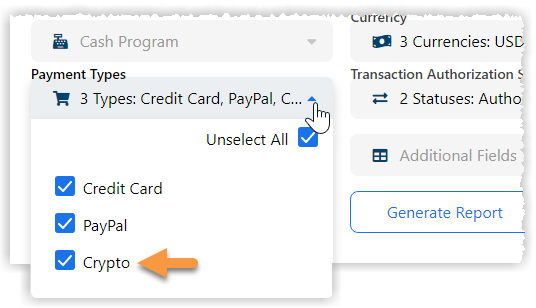
Reports with a Payment Types drop-down include a Crypto checkbox.
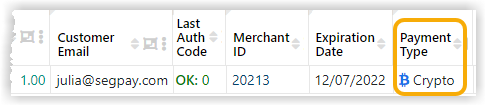
Reports that display a Payment Type column show Crypto alongside Credit Card and PayPal.
Consumer experience
Payment flow
When a consumer selects crypto on your pay page, they complete the following steps:
-
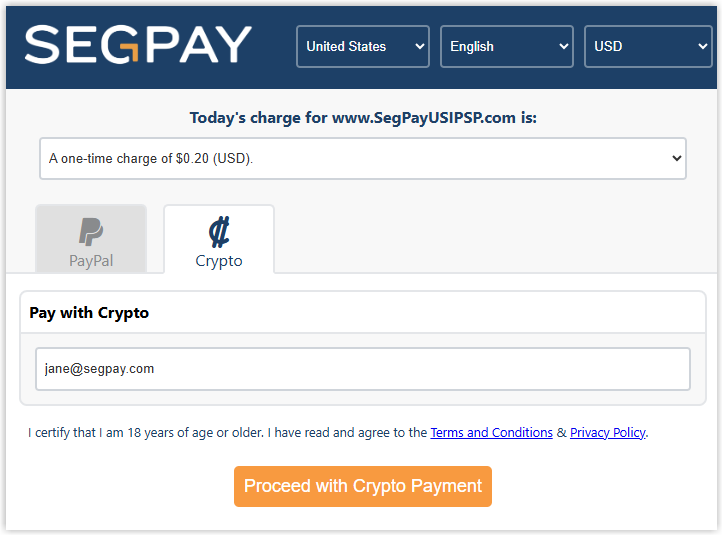
Enters a valid email address.
-
Selects a Wallet and Cryptocurrency.
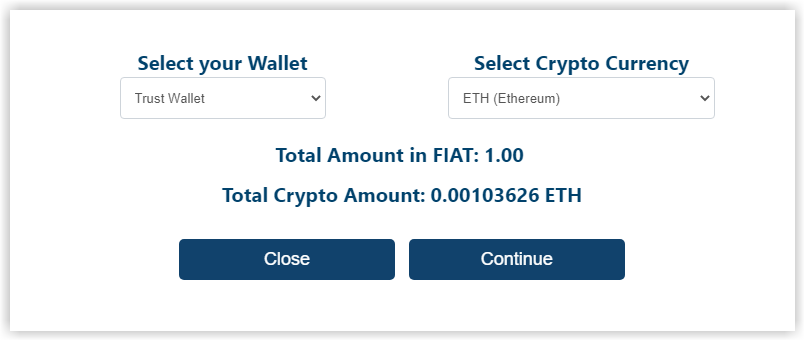
Segpay converts the fiat currency amount to the selected cryptocurrency at this step. The exchange rate refreshes every 10 seconds. All wallets are supported.
-
Clicks Continue to initiate the payment.
If the selected wallet and cryptocurrency are incompatible, the consumer sees this error: The currency is not supported in your wallet app.
-
Opens their wallet using the details in the pop-up window and sends the requested amount.
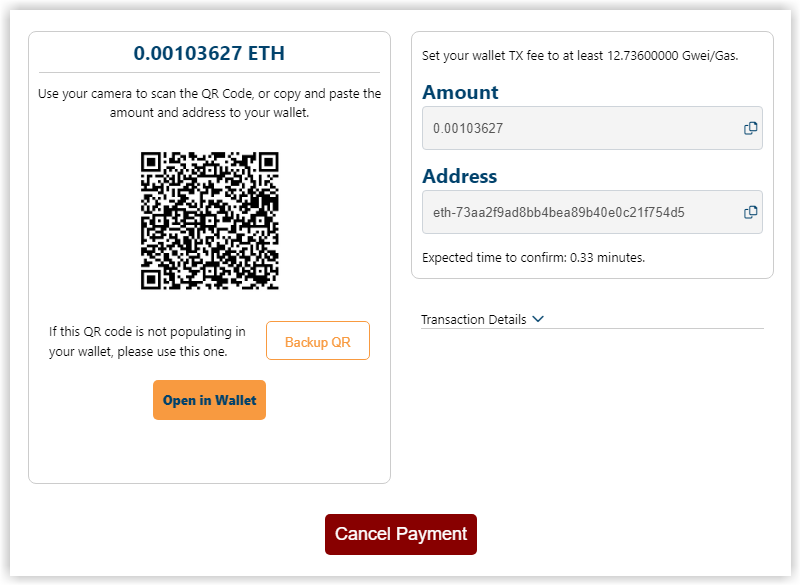
The consumer can expand Transaction Details in the pop-up window to view: Payment ID, Order Amount, Exchange Rate, Exchange Amount, Network Cost, and Total to Send. The consumer can also cancel the payment. When cancelled, the consumer sees a decline page. A postback is sent with transaction code
SPXXXX: Transaction Cancelled by Consumerand transaction IDSPDECLINE. -
Views a receipt page confirming the payment and shows purchase details.
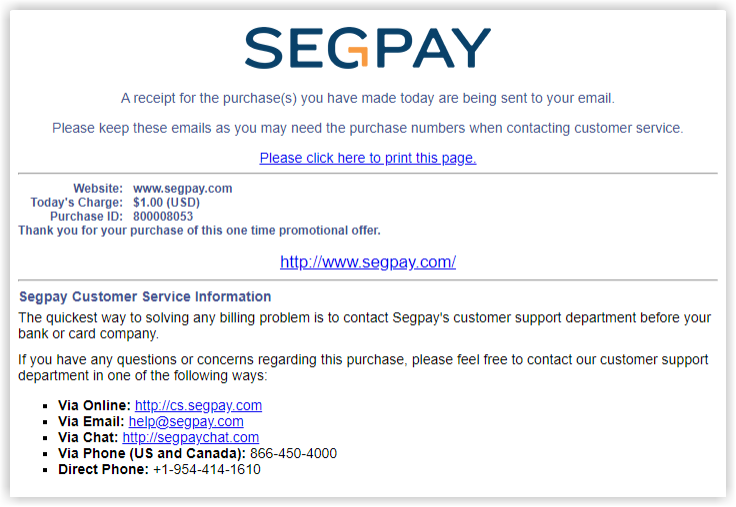
-
Receives a confirmation email indicating the purchase is complete.
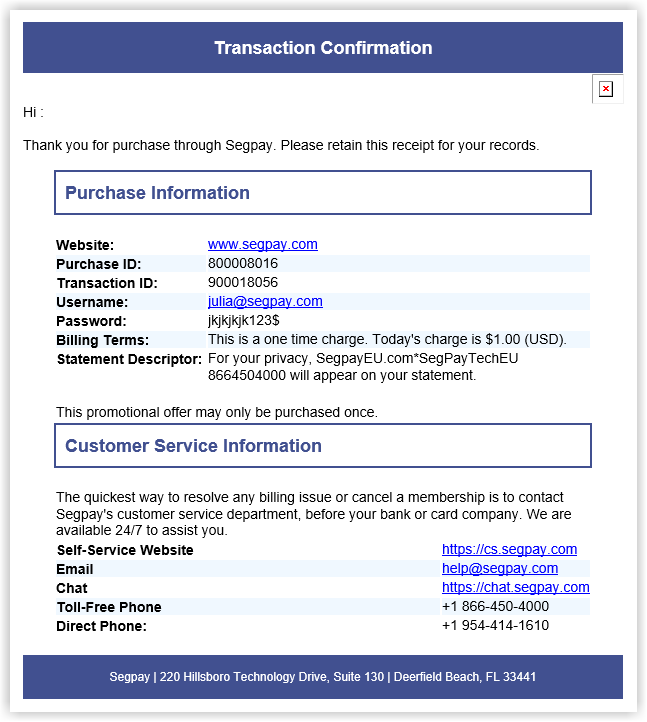
Payment confirmation and late payments
Successful payment
A payment confirmed within 15 minutes is considered successful.
-
The consumer sees a receipt page and receives a confirmation email.
-
The merchant site receives a postback confirming the completed purchase.
Late payment accepted
A payment not confirmed within the first 15 minutes enters a late window. The consumer sees a pending message on the pay page and receives an email if the payment is later confirmed. Segpay verifies the payment amount before accepting, as the original exchange rate is no longer guaranteed.
If the payment is accepted between 15 and 30 minutes:
-
The consumer receives a receipt email. No receipt is shown on the pay page.
-
The merchant site receives an approved postback.
-
The transaction appears as a successful crypto sale in your reports.
A transaction that misses the initial 15-minute window may initially show as cancelled. If the payment is confirmed within 30 minutes, the transaction updates to approved.
Late payment declined
A payment confirmed after 30 minutes cannot be completed.
-
The consumer receives an email with instructions to visit the Consumer Portal and supply a blockchain address to receive a refund.
-
The merchant site receives a declined postback.
Consumer Portal transaction view
When a consumer looks up a crypto transaction in the Consumer Portal, they see a Crypto Status column.

Clicking the Check Status link opens a pop-up window with additional details about the crypto payment.
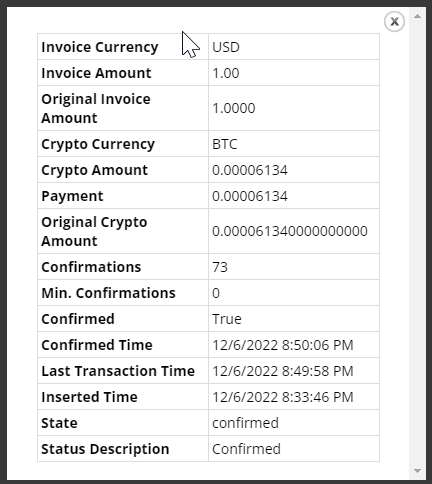
See also
For answers to common crypto questions, see the Crypto FAQ.