 Search Tips
VAMP Summary Report
The Visa Acquirer Monitoring Program (VAMP) Summary Report helps you monitor and manage fraud and dispute ratios to maintain compliance with Visa's card network requirements. Merchants may face fines if their VAMP alert ratios exceed certain thresholds. Visa refers to this metric as the VAMP Ratio, but it appears as the VAMP Rate in this report. Both terms refer to the same calculation.
This guide explains what the VAMP Rate is, how to monitor it using the VAMP Summary Report, and how to interpret the data to track your performance and avoid fines.
Recommendation: Review this report monthly, even if you have never received a VAMP notice from your bank or acquirer.
VAMP Rate Definition
The VAMP Rate measures the rate of fraud and dispute activity against settled Visa transactions. Visa also refers to the VAMP Rate as the VAMP Ratio.
VAMP Rate = (TC40 Alerts + TC15 Alerts) / Settled Visa Transactions
-
TC40 Fraud File Alerts: Fraud claims or complaints reported before chargebacks occur.
-
TC15 Chargeback Alerts: Visa dispute and chargeback alerts.
-
Settled Visa Transactions: Total authorized Visa sales volume.
Avoiding Fines
Monitor your VAMP Rate in the VAMP Summary Report. This is the critical metric that determines whether you're at risk of fines. Visa categorizes merchants into program levels based on this rate.
| Level Name | Threshold | Fees Apply? |
|---|---|---|
| Early Warning | Below enforcement levels. | No |
| Above Standard | Varies by region. | Yes |
| Excessive | VAMP Rate 1.5% (150 basis points) or higher. | Yes |
If your VAMP Rate is 1.5% (150 basis points) or higher, this is your “red zone” for the Excessive level. Fees apply at this threshold and above.
Your bank or acquirer may apply tighter internal risk limits than Visa's published thresholds. Treat an upward trend as your early signal to take action.
Generating the VAMP Summary Report
-
Log in to the Merchant Portal.
-
Navigate to Performance Reporting > VAMP Summary Report.
-
Choose which month(s) to include in your report. The system automatically selects the current month plus the two previous months.
-
Select your account(s).
-
Choose how you want to group your results: Month, Week, Day.
-
Select the Processing Bank checkbox (optional) to separate records by processing bank. The report then displays separate records for each bank within each time period.
-
Click “Generate Report."
-
Review the summaries for each of your merchant IDs (MIDs).
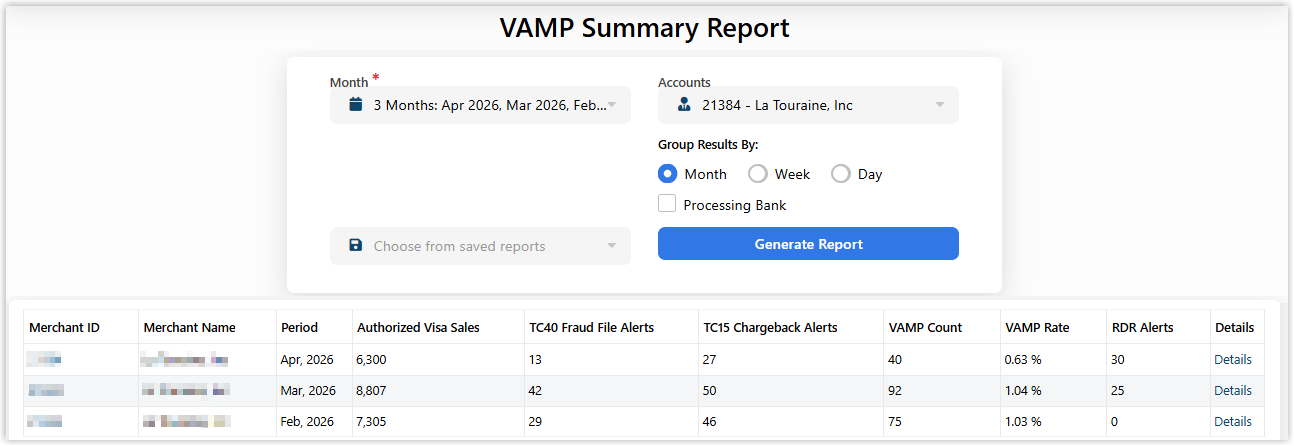
Monitor the VAMP Rate column in the VAMP Summary Report. This is the critical metric that determines whether you're at risk of fines. If your VAMP Rate is 1.5% (150 basis points) or higher, this is your “red zone” for the Excessive level. Fees apply at this threshold and above.
Understanding the Summary Report Columns
The VAMP Summary Report contains the following columns:
| Column Name | Description |
|---|---|
| Merchant ID | Your merchant identification number. |
| Merchant Name | The name associated with your merchant account. |
| Period | The reporting period by month, week, or day (depending on what you selected). |
| Authorized Visa Sales | Total number of transactions made with a Visa credit card (includes sign-up sales, one-click, and rebills). |
| TC40 Fraud File Alerts | Total number of fraud claims/complaints regarding a transaction that has not yet resulted in a chargeback. |
| TC15 Chargeback Alerts | Total number of chargebacks on transactions. |
| VAMP Count | The sum of TC40 and TC15 alert numbers, which contributes to your VAMP Rate calculation. |
| VAMP Rate | The VAMP Rate is the VAMP Count divided by Authorized Visa Sales. This is the column you will want to monitor to determine if you are at risk of fines. |
| RDR Alerts | This is not related to VAMP. The purpose is to show the number of Rapid Dispute Resolution alerts for the month. RDR can help prevent chargebacks before they occur. For more information, see the RDR FAQ. |
| Details | Click this link to view transaction-level details |
Viewing the VAMP Detail Report
After you generate your VAMP Summary Report, open the VAMP Detail Report to see transaction-level information for all transactions that contributed to your monthly alert counts. To review the specific transactions that make up your summary numbers:
-
Click the Details link for any one of the records in your VAMP Summary Report.
-
The link opens the VAMP Detail Report in a new page.
-
Focus on the VAMP Count column. It shows how many TC alerts the portal reported for each transaction. Here is what the numbers mean:
-
1: One alert type occurred (either a TC40 fraud claim or a TC15 chargeback). -
2: Both alert types occurred for the same transaction (a TC40 fraud claim that later became a TC15 chargeback). -
0: The transaction had only an RDR alert, with no TC40 or TC15 alerts.
Be aware that just because a transaction starts with a fraud claim does not mean it will turn into a fraud-related chargeback.
-
What to Do Next
Use the VAMP Summary Report to identify your current risk level and take appropriate action. The steps you take depend on whether your VAMP Rate is stable or trending upward.
If your VAMP Rate is stable and low
-
No action is required.
-
Continue monthly monitoring.
If your VAMP Rate is increasing
Take these steps in order:
-
Identify which number is rising:
-
Are TC40 alerts increasing?
-
Are TC15 alerts increasing?
-
-
Open the Details report for the record with a high VAMP Rate:
-
Use the Details link to review the transactions contributing to the counts.
-
Look for patterns such as repeated customer disputes, repeat cards, repeat products, or unusual traffic.
-
-
Reduce disputes and fraud going forward. Depending on what you see, actions may include:
-
Tightening fraud controls and monitoring for card testing.
-
Improving customer support and cancellation/refund flows.
-
Reviewing marketing and billing practices that drive "friendly fraud."
-
-
If you need guidance, contact your acquiring bank (or Segpay support). Your bank or acquirer can provide the most accurate guidance on your specific threshold, required remediation, and timing.
Questions?
If you notice unusual patterns in your VAMP Summary Report or you have questions about your alert counts, contact your account manager for assistance.